Exploring data
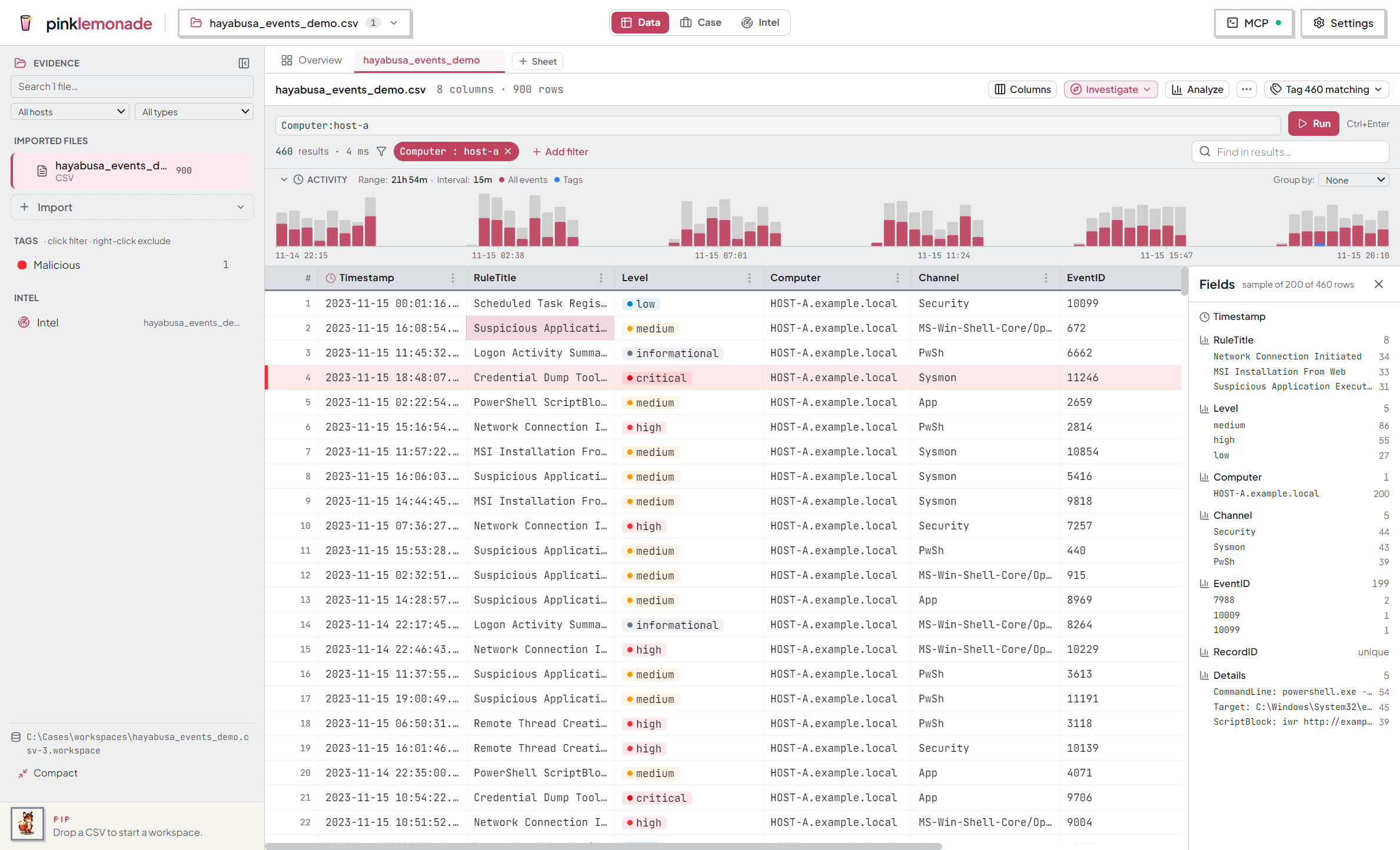
Data mode is a spreadsheet-style grid built for large timelines. Import a file into a workspace and start narrowing.
The grid
- Scroll freely — rows load as you go, millions are fine.
- Sort — click a header (again to flip, a third time to clear).
- Resize — drag a header edge; double-click it to auto-fit.
- Reorder / hide columns — drag headers; Columns button or a header’s ⋯ menu. Hidden columns stay out of exports. All remembered.
- Time columns are auto-detected (🕐).
- Copy — select cells (drag, or click a row number) →
Ctrl+Cas TSV. - Severity values (
critical/high/medium/low/info) render as colored badges.
| Key | Does |
|---|---|
| Ctrl+A / Ctrl+C | select all / copy selection (TSV) |
| Ctrl+F | jump to Find in results |
| Esc | clear the selection |
| ↑ ↓ / Shift+↑ ↓ | move / extend the row selection |
Row details
Double-click a row number to open the Event details panel — every field fully wrapped, no truncation. From it:
- Copy any field or all of them.
- Filter to a field’s value in one click.
- Send to Intel on recognized indicators.
- Add to case — record the row as a case event.
- Tabs show the agent’s AI analysis note and the row’s Intel sightings.
The panel stays docked and follows your row selection; Esc closes it.
The query bar
Row 1 is the query; row 2 is the result.
Type your filters in the expression box, then Run (or Enter):
user:alice status=404 time>=2026-06-01
| Write | Means |
|---|---|
field:value | contains |
field=value | equals |
doubled (:: ==) | case-sensitive |
leading ! (!: !=) | negate |
time>=… / time<=… | on/after, on/before (time columns; both = between) |
- Space between clauses = AND. Quote values with spaces (
message:"logon failed"). - A hint below previews what Run will do (↵ 3 filters). A clause that doesn’t parse blocks the whole apply and shows the error — nothing is ever applied partially.
- The box mirrors the active filters as text, however they were created. Edit and re-apply; Esc reverts an unapplied edit.
- Run on an unchanged query re-runs it (fresh rows and a fresh count).
Row 2 shows N results · X ms, the filter chips (click to edit, ✕ to remove), + Add filter (a small column/operator/value form), and Find in results pinned right — it highlights matches and steps through them with Enter / Shift+Enter.
More ways to add filters:
- Right-click a cell → Filter to value / Exclude value.
- A header’s ⋯ menu → checklist of the column’s distinct values (multi-value filter).
Investigate ▾ and Analyze
The toolbar’s Investigate ▾ menu holds:
- Field values — a docked rail of per-column value distributions over the current result set. Click a value to filter to it.
- Find in files — search every source in the workspace at once.
- Sightings — the sweep rollup.
- Intel sweep — hunt a set of indicators across this source.
Analyze opens pivots + SQL:
- Pivot — group-by (optionally two dimensions → heatmap); click a cell to filter the grid to those rows.
- SQL — a read-only
SELECTconsole with a schema hint. Anything else is refused.
Summarize a column
Header ⋯ → Summarize: distinct count, blank %, time span, and a top-N distribution (time columns bucket by Day/Hour/Hour-of-day/Weekday). Click a bar to filter to that value. Export the values to a notepad, or Send to Intel.
JSON columns
Logs that pack everything into one JSON column (O365 AuditData, Hayabusa Details):
- Read — double-click the cell → Pretty/Raw tree view.
- Extract — header ⋯ → Extract JSON field… pulls chosen fields out into real grid columns you can filter, sort, sweep, and summarize. Original data unchanged.
Time pivots
Right-click a timestamp → ±5 minutes (or custom) filters the source to that window. The pivot row keeps a pink ring + 📍 pin and the grid re-centers on it, so you see what happened just before and after. One-sided bounds (on/after, on/before) live in the same menu.
Exporting
⋯ More → Export CSV writes the current view — all matching rows (streamed, not just what’s on screen), visible columns only, in on-screen order. The confirm shows the row count. The ⋯ menu also holds the fast-search index toggle and the keyboard-shortcut list.