Getting started
Launching
- Download the portable
.exefrom Releases and double-click it. No install. - It’s unsigned — the first run, SmartScreen asks for More info → Run anyway.
- The app opens on Home. Your work saves under
%APPDATA%\pink-lemonadeand comes back next launch.
The Home screen
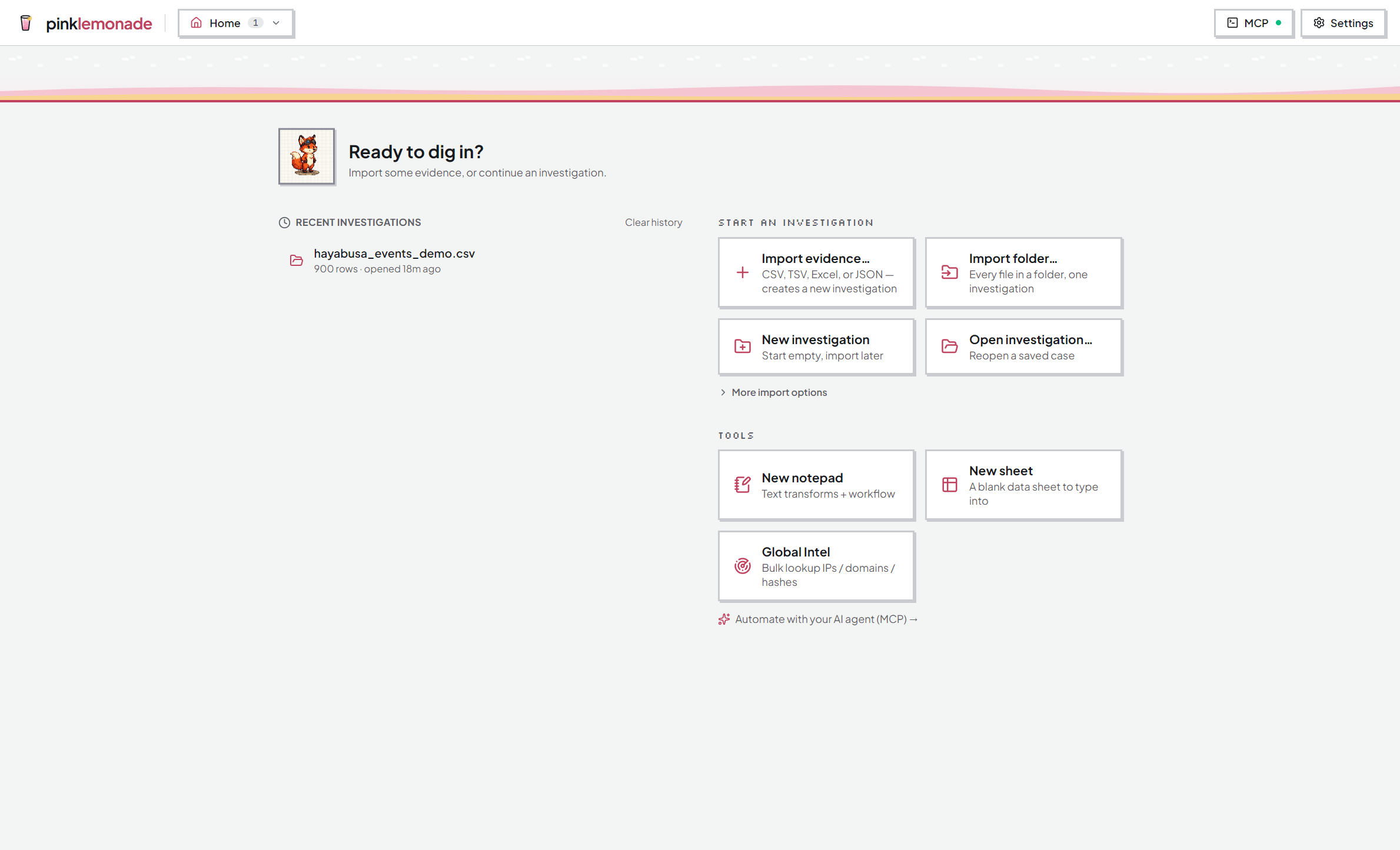
Recent investigations — your cases, newest first. Click to reopen; the row menu can reveal the file in Explorer or remove the entry.
Start an investigation
- Import evidence… — CSV, TSV, Excel, or JSON. Creates a new investigation. Each non-empty Excel worksheet becomes its own source.
- Import folder… — every supported file under a folder (e.g. a parsed KAPE package), one investigation.
- New investigation — start empty, import later.
- Open investigation… — reopen a saved
.workspacefile. - More import options — folds out the specialized importers:
- IIS logs — crawl a folder for W3C
.logfiles, validate, merge. - Azure / Entra — download blobs or sign-in/audit logs. Requires
az loginfirst.
- IIS logs — crawl a folder for W3C
Tools
- New notepad — text transforms + workflow.
- New sheet — a blank data sheet to type into.
- Global Intel — bulk indicator lookups and watchlists, outside any case.
Automate with your AI agent (MCP) — opens the terminal-connection dialog. See the AI guide.
The header
- Document switcher (next to the logo) — shows where you are. Click it to jump between Home and your open documents, rename or close one, or open a new notepad. Double-click it to rename the current document.
- Mode bar (workspaces only) — Data · Case · Intel.
- MCP — the local server for your AI agent. The dot shows its state: 🟢 running, 🟡 starting, 🔴 error.
- Settings — appearance, storage folders, About:
- Palette — Retro (the signature look) or Modern (flat, for reports and client work).
- Light / Dark and Text size.
- Investigations folder — where new investigations save; the Open dialog starts there.
- Evidence folder — the only folder your AI agent may import from. Unset = the agent can’t import.
All appearance choices are remembered.
First notepad
- New notepad → paste text into the left pane.
- Click a tool in the palette (e.g. Extract IPv4). The result appears on the right.
- Keep clicking tools to build a chain. → Notepad
First import
- Import evidence… → pick a file.
- You land in Data mode: your file as a source tab beside an Overview tab, the Evidence sidebar on the left, the grid in the middle.
Which import to use
- Tabular/JSON logs → Import evidence… or Import folder…
- A folder of W3C logs to validate and merge → IIS logs.
- Cloud evidence → Azure / Entra (needs the Azure CLI, signed in).
- Manual data entry → New sheet.
pink-lemonade imports and normalizes supported tabular and log formats. It doesn’t parse raw forensic artifacts — run your parsing tools first, then import their output.