Workspaces
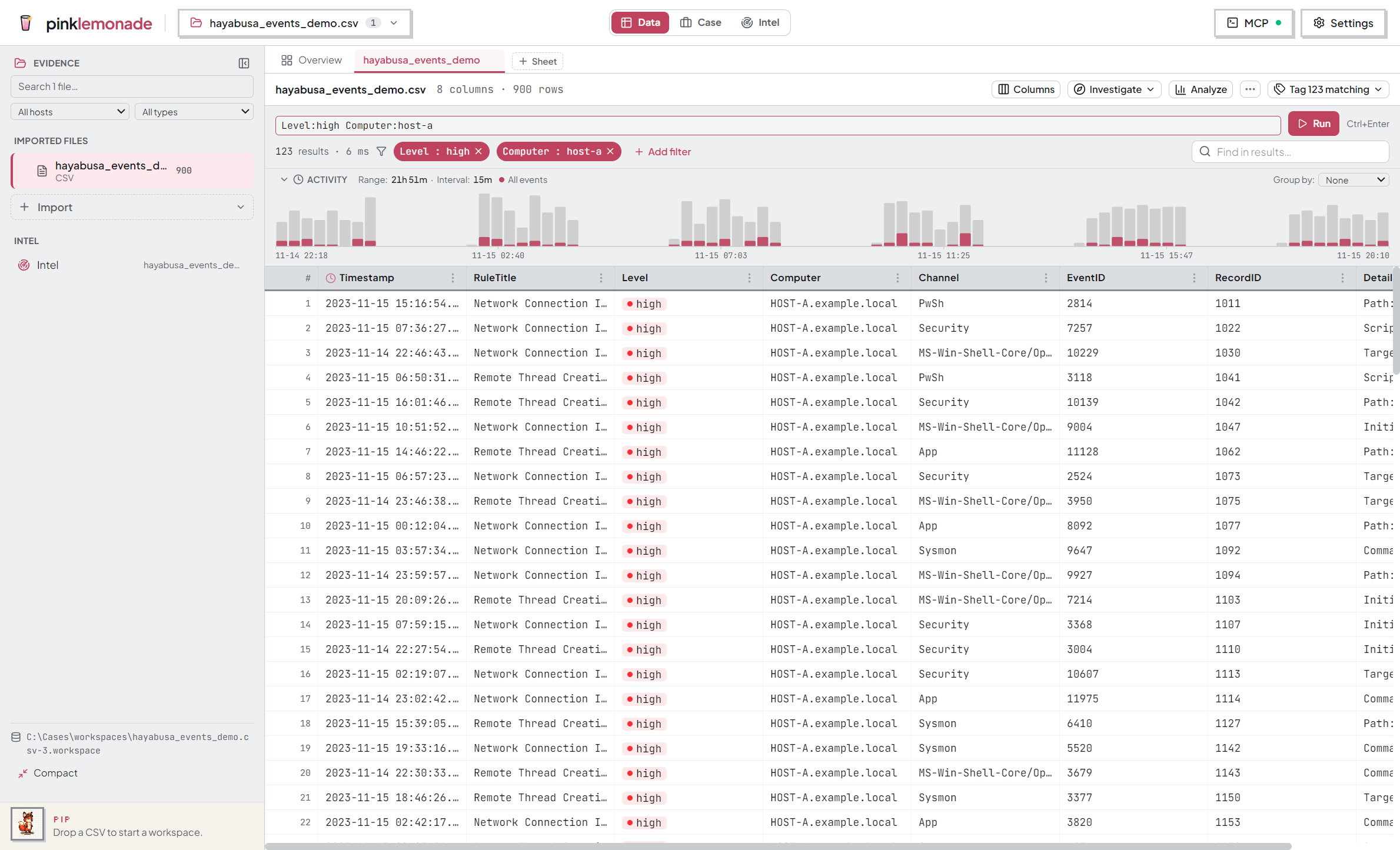
A workspace is one investigation in one .workspace file: the imported files (sources) plus everything built on them — tags, sightings, and your AI agent’s findings. Close it, reopen it later, everything’s still there.
Three modes: Data · Case · Intel
The segmented bar in the header switches the whole workspace:
- Data — the grid: sources, filters, tags, analytics. Where you triage. (This page covers Data.)
- Case — review findings, inspect cited evidence, track the plan, systems, and IOCs, build the report. A badge counts findings awaiting review.
- Intel — enrichment per indicator, with a case ⇄ Global scope toggle. → Intel
Creating one
- Import evidence… — one file becomes the first source (CSV, TSV, Excel, JSONL, NDJSON; each Excel worksheet = a source).
- Import folder… — pick which supported files to include, group them by host on the way in.
- IIS logs / Azure / Entra — under More import options on Home.
- New investigation — empty; import into it later.
- New sheet — starts with a blank editable sheet.
The Evidence sidebar
Data mode’s left rail lists every imported source with its row count. Click one to open it.
- Search filters by file name or host; All hosts / All types narrow further. Filters also narrow what bulk actions touch.
- + Import — all five import paths, into the current workspace.
- Rename a source (double-click / pencil) — display only, data untouched.
- Remove a source (✕, with confirm).
- Collapse the rail to reclaim width — the collapsed rail keeps shortcuts: expand, source count, search, import, and your active tag filters.
Moving between sources
- Source tabs above the grid are your open set — only open sources mount a grid.
Ctrl+Tabcycles,Ctrl+Wcloses (the source stays in the workspace). - Overview — the first tab: hosts laid out as source cards with counts and rollups. Click a card to open it.
- Split view — hover a tab → columns icon to open it beside the current one. Unsplit to go back.
Grouping by host
Give each source a group — the host/system it came from (HOST-A, PaloAlto-Perimeter):
- Set it per source (Layers icon), on a multi-selection (ctrl/shift-click → Group…), or at folder-import time.
- The sidebar then groups sources under host headers; click a header to fold it. Collapse all / Expand all scans the host list fast. Folded state is remembered per workspace.
- Groups also tell your AI agent which machine a source belongs to.
Renaming the workspace
Double-click the document switcher in the header (or use its rename pencil). The name saves into the workspace file.
Storage
- The sidebar footer shows the workspace file’s path.
- Change where new investigations save: Settings → Storage → Investigations folder.
- Compact (sidebar footer) reclaims disk after removing large sources — it reports what it freed and runs in the background.
- Each open workspace runs its database in its own worker, so heavy queries don’t freeze the app. Several huge cases still share one machine.
Closing and reopening
Everything persists automatically. Reopen from the header switcher, Recent investigations on Home, or Open investigation….